One focused asset brief
Describe one subject with shape, material, style, and use signals instead of combining unrelated ideas.
Free plan · Text to 3D AI Generator
Turn a focused description into a private 3D asset. Free accounts include 20 daily credits. Inspect the result, then choose a download or conversion path.
to submit this private task, track its progress, and reopen the result in Creations.
Describe one subject with shape, material, style, and use signals instead of combining unrelated ideas.
Sign in to use 20 free daily credits, submit the prompt, and keep the resulting 3D model tied to your account.
Open the completed model to inspect its silhouette, orientation, material treatment, and available next steps.
See the download and conversion actions available for the result and your account.
Original asset gallery
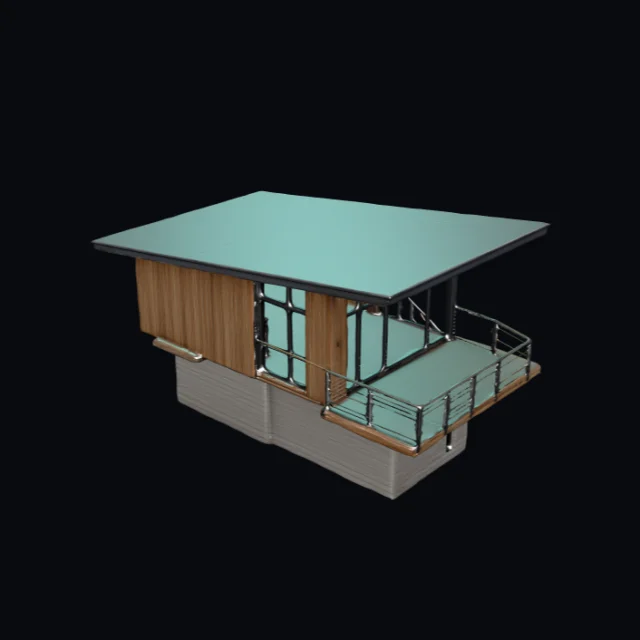 Cedar observatory cabin · V1 model · GLBCreate similar
 Cloud chaise lounge · V1 model · GLBCreate similar
 Bioluminescent seed pod · V1 model · GLBCreate similar
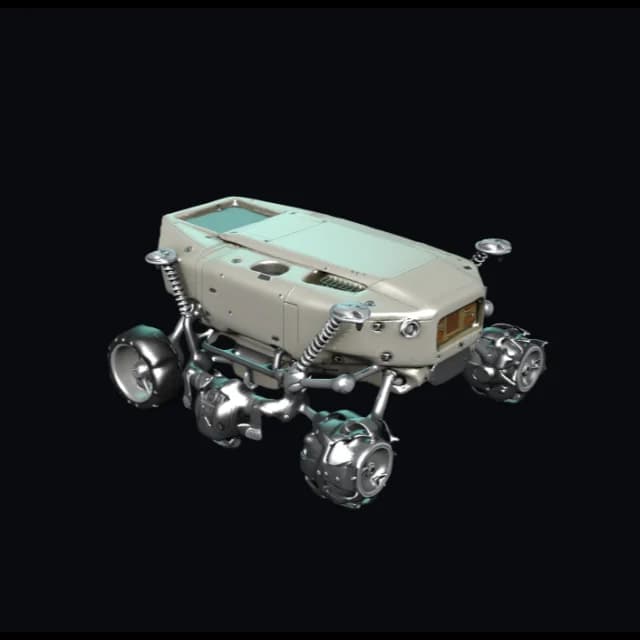 Lunar sampling rover · V3 model · FBXV3.0Create similar
 Modular desktop speaker · V3 model · FBXV3.0Create similar
 Moss stone guardian · V3 model · FBXV3.0Create similar
 Brass beetle scout · V4 model · GLBV4.0Create similar
 Unbranded trail runner · V4 model · GLBV4.0Create similar
How it works
Write a focused prompt, generate the asset, then inspect its geometry and materials before download or conversion.
State the main subject first, then add silhouette, material, style, one important detail, and the intended use for the first model.
Choose a model version and sign in. AI3DGenerator checks access, reserves credits, and submits the generation task.
Open the asset in the private viewer. Inspect it, then choose one of the available download or conversion actions.
Prompt-writing tips
A useful text-to-3D prompt does not need to be long. It should state the subject, shape, surface direction, and intended use before you spend credits.
Lead with the single object, prop, character, or product you want to make. Several unrelated subjects make the prompt harder to interpret.
Add broad proportions and the most recognizable outline: tall or squat, rounded or angular, narrow or wide, symmetric or offset.
Use a few concrete surface cues such as painted metal, fabric grille, carved stone, or glossy ceramic, plus a clear style direction when it matters.
Call out the feature that makes the asset identifiable, such as exposed wheels, a horn, a ring mechanism, or a recessed control panel.
Say whether the first model is for a game prop, product discussion, print planning, or concept check so the prompt has a practical goal.
Keep background, action, multiple characters, lighting setups, and camera storytelling out of the first asset brief unless they define the object itself.
Use cases
Turn a written prop, character, or vehicle prompt into an early 3D model for a silhouette, scale, and art-direction check.
Use a short product prompt to discuss shape, proportion, material direction, and presentation ahead of detailed CAD or visualization work.
Create an initial mesh for print planning, then inspect orientation and choose a supported export before slicer or repair work.
Move a written collectible, character, or abstract-object concept into an inspectable 3D model for the next creative tool.
Inspect and hand off
Check geometry, topology, materials, scale, and orientation in the browser viewer. Then prepare the asset for its next tool.
Format boundaries
The format panel separates browser exports, preview inputs, and private processing paths. Choose the route that matches your next tool.
GLB
Verified local export
glTF
Verified local export
OBJ
Verified local export
STL
Verified local export
PLY
Verified local export
USDZ
Verified local export
FBX
Input / preview
3MF
Viewer-local mesh export
FAQ
Answers about free credits, text-to-3D prompts, private tasks, failed generations, 3D model previews, and supported exports.
20 free daily credits
Describe the subject, shape, surface, and intended use. Then inspect the generated asset in your private viewer.